If you don’t have a Portomundi account yet, go to the create an account page first and follow these steps to setup your account. If you already have a Portomundi account, follow the steps below.
When you are successfully logged in on the Portomundi platform, click on the Terminals module icon in the left pane to navigate to the Portomundi Terminals module.
The first step is to link your Global Portnet (GPN) account to your Portomundi company account. Therefore you need to fill in the GPN Company Code. You can look up your account code via the portal itself (see screenshot 1 below).
Click on the Save button to confirm.
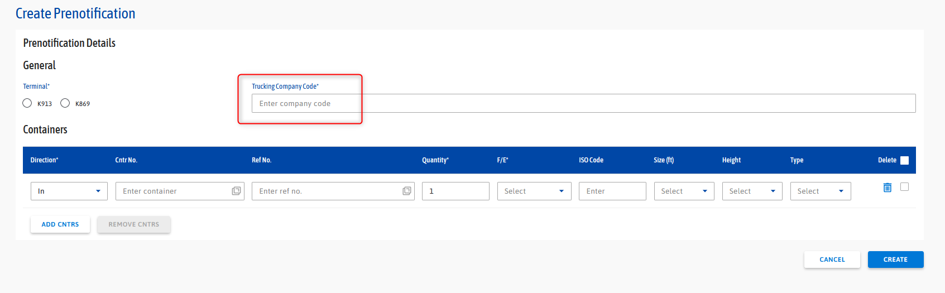
Screenshot 1: GPN Account code
Next you can input this field in the Portomundi terminals module.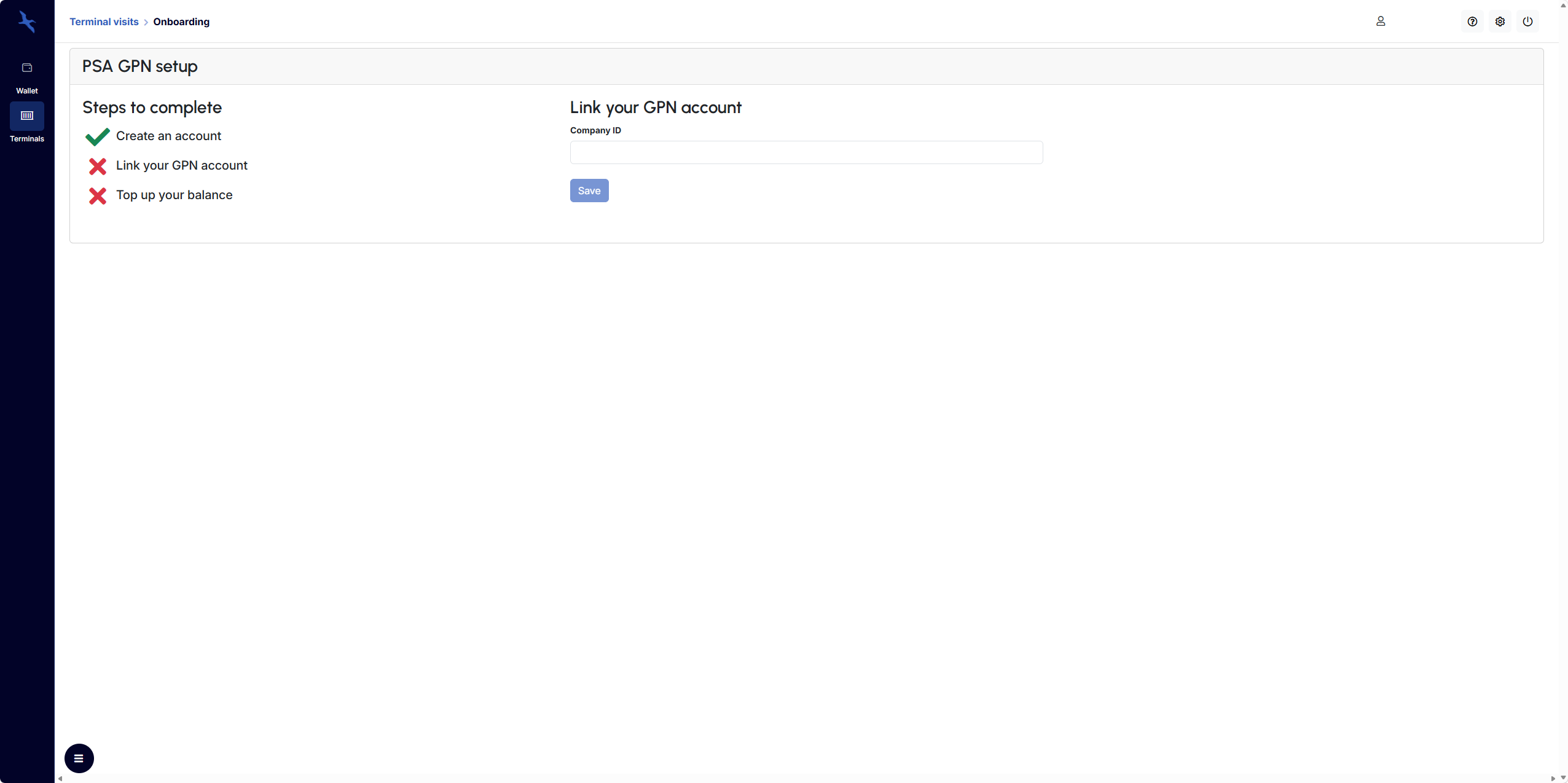
Confirmation required: you will need to accept both the Portomundi and the PSA Antwerp specific terms & conditions checkboxes before you will be able to select the Link account button.
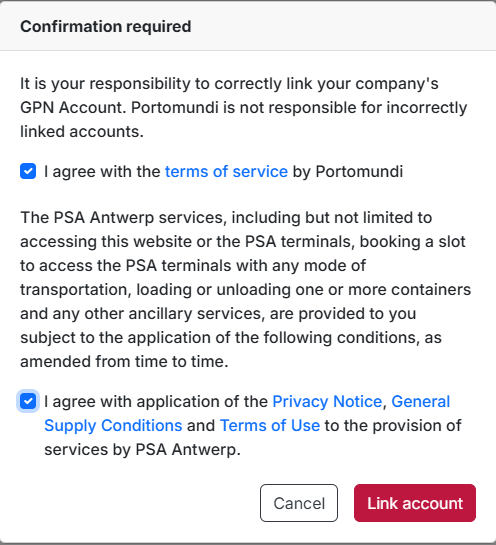
By confirmation via the Link account button your GPN account will now be automatically linked to your Portomundi account.
After successfully linking your GPN account to your Portomundi account, you only need to top up your wallet and your account is all set. More info about topping up your wallet, go to the Top up your wallet page.
Once your wallet is topped up, you will be able to navigate to the Portomundi Terminals module where you will find all relevant information regarding your Terminals visits.
Was this article helpful?
That’s Great!
Thank you for your feedback
Sorry! We couldn't be helpful
Thank you for your feedback
Feedback sent
We appreciate your effort and will try to fix the article